
MCP Setup Guide
Connect TieBase to Claude Desktop using MCP
1 min read
TieBase includes a built-in STDIO-based MCP server so AI tools (like Claude Desktop) can access your local notes when you ask.
1) Get the MCP server path
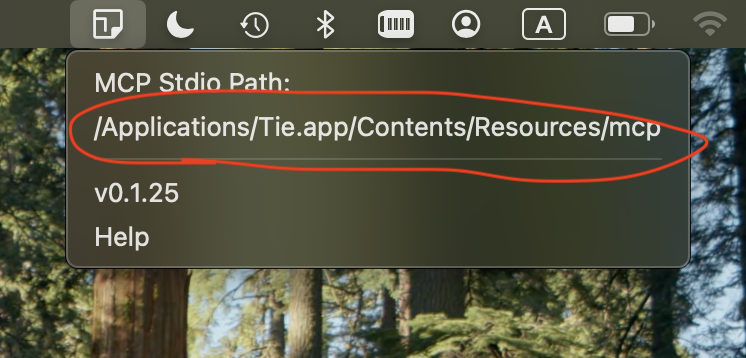
On macOS you can copy the MCP path from TieBase’s menu bar / tray icon.
Typical path:
/Applications/TieBase.app/Contents/Resources/mcp
2) Configure Claude Desktop
Open Claude Desktop’s config file:
~/Library/Application Support/Claude/claude_desktop_config.json
Add (or merge) the following configuration. Replace the path if yours is different:
{
  "mcpServers": {
    "tie": {
      "command": "/Applications/TieBase.app/Contents/Resources/mcp"
    }
  }
}
3) Restart Claude Desktop
Restart Claude Desktop so it picks up the new MCP server.
4) Verify it works
Try asking Claude Desktop:
- “Search my TieBase notes for …”
- “List the available TieBase tags”
- “Show notes tagged with …”